

Find Out Who Can Access Your SharePoint Online Site
SharePoint Online, allows teams to collaborate on documents, lists, and other content within sites. Access to a SharePoint site is controlled through permissions, which can be assigned to users directly or via groups.
Permissions determine what actions users can perform, such as viewing, editing, or managing the site.
Understanding SharePoint Permissions
To find out who has access to your SharePoint site, you need to be a site owner or have Full Control permissions. This guide explains the steps to view site-wide permissions, check group memberships, and verify access for specific users or items. These instructions are based on standard SharePoint Online interfaces.
SharePoint uses a hierarchy of permissions:
- Permission Levels: Predefined sets of rights, such as Read (view only), Contribute (edit content), or Full Control (manage everything).
- Groups: Collections of users sharing the same permission level. Default groups include Site Owners (Full Control), Site Members (Contribute), and Site Visitors (Read).
- Inheritance: By default, subsites, libraries, lists, folders, and files inherit permissions from the parent site. You can break inheritance for unique access controls.
- Sharing: Sites can be shared with internal users, external guests, or via links, which may grant access beyond standard groups.
Permissions can be managed at the site level or for individual items. To see who has access, you'll primarily use the Site Settings menu.
Viewing Site Permissions and Groups
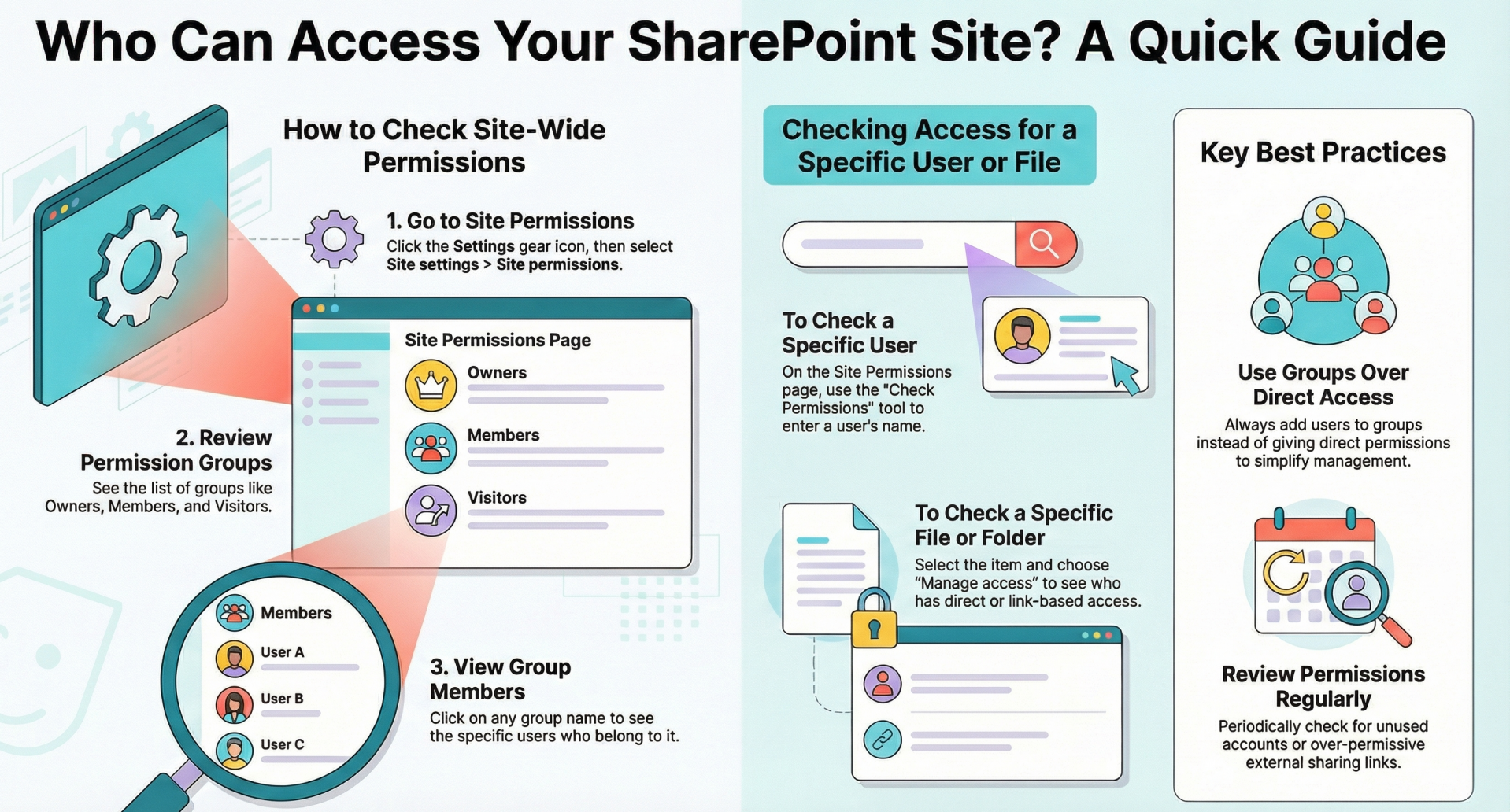
To see an overview of who has access to the entire site, follow these steps:
- Navigate to your SharePoint Online site in a web browser (e.g., via Microsoft 365 portal or direct URL).
- Click the gear icon (Settings) in the top-right corner.
- Select Site settings (or Site information > View all site settings if using modern experience).
- Under the Users and Permissions section, click Site permissions.
- On the Site Permissions page, you'll see a list of groups and their assigned permission levels (e.g., Owners, Members, Visitors).
- Click on a group name to view its members. This shows the users or security groups (from Microsoft Entra ID) added to it.
- If there are any users with direct permissions (not through groups), they will appear under "Users with unique permissions" or similar sections.
This view reveals most access points but note that external sharing or inherited permissions from parent sites (if applicable) might affect access.
Checking Permissions for a Specific User
If you want to verify what access a particular user has:
- From the Site Permissions page (as described above), click Check Permissions in the top ribbon.
- Enter the user's name or email in the "User/Group" field.
- Click Check Now.
- The results will display the user's effective permission level and how it's granted (e.g., via a group or directly).
This is useful for troubleshooting access issues or confirming inheritance.
Viewing Access to Specific Files, Folders, or Libraries
Site access often extends to content within it, but permissions can be customized. To check who has access to a specific item:
- Navigate to the document library, list, or folder in your site.
- Select the file or folder (or click the ellipsis (...) next to it).
- Choose Manage access.
- In the Manage Access panel, you'll see:
- Direct access: Users or groups with explicit permissions.
- Links giving access: Any sharing links and who they've been sent to.
- Inherited access: From the site or parent.
This helps identify if sensitive content has unique sharing.
Advanced Auditing and Reporting
For more detailed insights, such as who has actually accessed the site (not just who can):
- Enable the Viewers feature:
- Go to Site settings > Site collection features.
- Activate SharePoint Viewers.
- Once enabled, for files, you can see recent viewers by hovering over the file or using the details pane.
- Use Microsoft 365 audit logs (requires admin access):
- Go to the Microsoft Purview compliance portal > Audit.
- Search for activities like "Accessed file" or "Shared file" related to your site.
For enterprise-level reporting, consider tools like the SharePoint Admin Center or PowerShell scripts (e.g., Get-SPOSiteGroup).
Best Practices and Tips
- Use Groups: Always add users to groups rather than granting direct permissions to simplify management.
- Review Regularly: Periodically check for unused accounts or over-permissive sharing.
- External Access: If your site allows external sharing, review the "External user invitations" in Site permissions.
- Permissions Errors: If users see "Access Denied," they can request access if the feature is enabled.
- Mobile Access: Steps are similar in the SharePoint mobile app, but use the web version for full settings.
If you're not a site owner, contact one to request this information. For organization-wide sites, global admins can use the SharePoint Admin Center > Sites > Active sites to view high-level permissions.
Conclusion
By following these steps, you can effectively determine who has access to your SharePoint Online site and its content. Maintaining proper permissions ensures security and collaboration efficiency. For the latest updates, refer to official Microsoft documentation, as interfaces may evolve.