

SharePoint Mentor Curated Articles
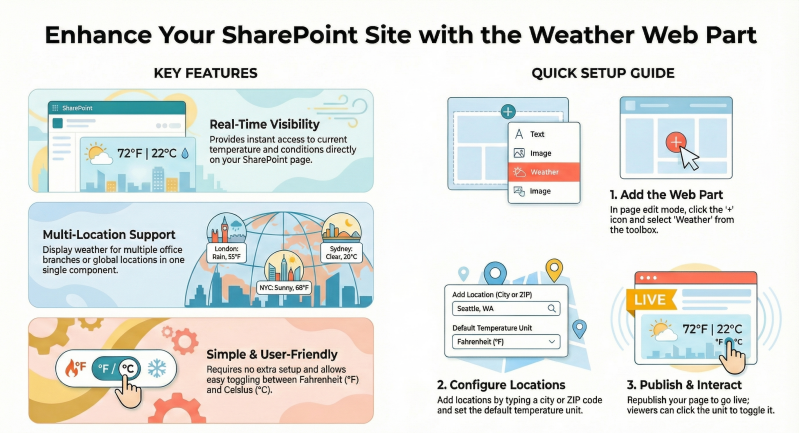
The SharePoint Online Weather Web Part is a built-in, lightweight tool designed for modern SharePoint pages that displays real-time current weather conditions for specified locations.
It's powered by MSN Weather data and integrates seamlessly into communication sites, team sites, or home pages.
The SharePoint Online Weather Web Part is a built-in, lightweight tool designed for modern SharePoint pages that displays real-time current weather conditions for specified locations.
It's powered by MSN Weather data and integrates seamlessly into communication sites, team sites, or home pages. While it focuses on simplicity rather than advanced forecasting, it offers several practical advantages for users and organizations:
- Real-Time Visibility and Convenience: Provides instant access to current temperature, weather icons (e.g., sunny, cloudy, rainy), and basic conditions directly on a SharePoint page, saving users time from switching to external apps or sites. This is especially useful for distributed teams checking conditions in one place.
- Multi-Location Support: Allows adding multiple locations (e.g., office branches worldwide) within a single web part instance, making it ideal for global organizations. For example, you can display weather for headquarters, regional offices, and remote sites side-by-side without cluttering the page with multiple web parts.
- User-Friendly Customization: Supports easy toggling between Fahrenheit (°F) and Celsius (°C) units per user preference—admins set a default, but individuals can click the unit indicator to switch on the fly. Locations can also be renamed for clarity (e.g., "NY Office" instead of "New York").
- Enhanced Engagement and Productivity: Adds a dynamic, glanceable element to intranet home pages or dashboards, fostering a more engaging user experience. It can inform travel planning, event scheduling, or outdoor activities by helping teams anticipate disruptions like storms, potentially reducing delays.
- Seamless Integration and Accessibility: As a native Microsoft web part, it requires no additional setup, third-party apps, or API keys. It links directly to MSN Weather for deeper details, and it's responsive across devices. This promotes broader adoption in Microsoft 365 environments without increasing IT overhead.
Adding and configuring the web part is straightforward and requires edit permissions on a modern SharePoint page. Here's a step-by-step guide:
- Navigate to Your Page: Go to the SharePoint site and open or create a modern page (e.g., a site home page or communication site). Click Edit in the top-right corner to enter edit mode.
- Add the Web Part:
- Click the + icon in a section (or between existing web parts) to open the web part toolbox.
- Under "Text, media, and content," select Weather (or search for "Weather" in the search bar).
- Drag or click to insert it into the page.
- Configure Locations:
- Once added, the web part prompts for a location—start typing a city, ZIP code, or address (e.g., "Seattle, WA" or "London, UK") to auto-suggest options.
- Click Add location to include more (up to several, depending on layout). You can edit location names for brevity.
- Set the default temperature unit (Fahrenheit or Celsius) in the properties pane on the right.
- Customize and Publish:
- In the properties pane, adjust layout options if needed (e.g., single column for multiple locations).
- Click Republish to save and make the page live.
- Interact with the Published Web Part:
- Viewers see the current weather icon, temperature, and unit.
- Click the temperature unit (e.g., "72°F") to toggle between °F and °C—this persists for the session.
- Click the MSN Weather link below for full forecasts, radar, and hourly details on the MSN site.
Quick Tips
- Layout: In a single-section view, multiple locations stack vertically for easy scanning.
- Limitations: It doesn't support auto-detection of user location or forecasts—consider third-party SPFx web parts (e.g., from AppSource) for advanced features like 6-day predictions.
- Troubleshooting: If weather seems inaccurate, it's sourced from MSN; refresh the page or check browser security settings for mixed content.
This web part is a simple yet effective way to make SharePoint pages more relevant and user-centric.