

SharePoint Mentor Curated Articles
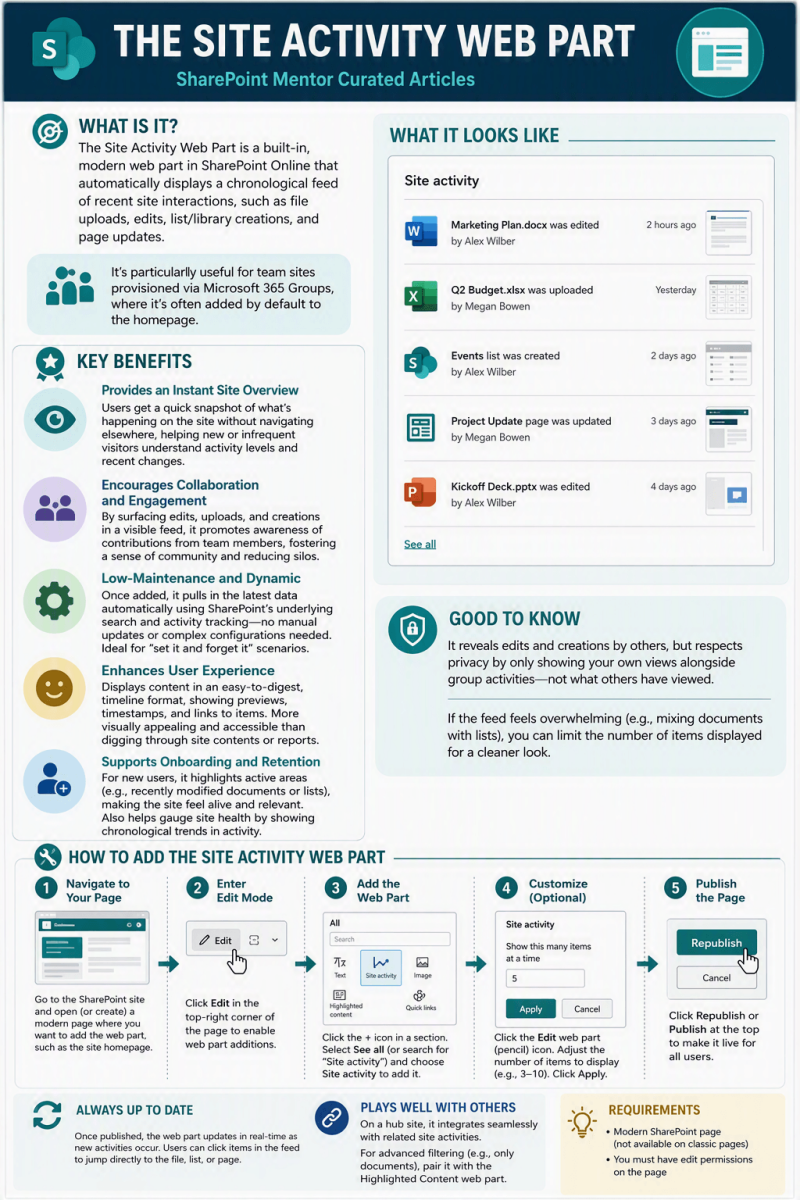
The Site Activity Web Part is a built-in, modern web part in SharePoint Online that automatically displays a chronological feed of recent site interactions, such as file uploads, edits, list/library creations, and page updates.
It's particularly useful for team sites provisioned via Microsoft 365 Groups, where it's often added by default to the homepage.
Here are its key benefits:
- Provides an Instant Site Overview: Users get a quick snapshot of what's happening on the site without navigating elsewhere, helping new or infrequent visitors understand activity levels and recent changes.
- Encourages Collaboration and Engagement: By surfacing edits, uploads, and creations in a visible feed, it promotes awareness of contributions from team members, fostering a sense of community and reducing silos.
- Low-Maintenance and Dynamic: Once added, it pulls in the latest data automatically using SharePoint's underlying search and activity tracking—no manual updates or complex configurations needed. This makes it ideal for "set it and forget it" scenarios on busy team pages.
- Enhances User Experience: It displays content in an easy-to-digest, timeline format, showing previews, timestamps, and links to items. This is more visually appealing and accessible than digging through site contents or usage reports, especially on modern pages.
- Supports Onboarding and Retention: For new users, it highlights active areas (e.g., recently modified documents or lists), making the site feel alive and relevant. It also helps gauge site health by showing chronological trends in activity.
Note that while it reveals edits and creations by others, it respects privacy by only showing your own views alongside group activities—not what others have viewed. If the feed feels overwhelming (e.g., mixing documents with lists), you can limit the number of items displayed for a cleaner look.
Using this web part is straightforward and requires edit permissions on the page. It only works on modern SharePoint pages (not classic ones). Follow these steps:
- Navigate to Your Page: Go to the SharePoint site and open (or create) a modern page where you want to add the web part, such as the site homepage.
- Enter Edit Mode: Click Edit in the top-right corner of the page to enable web part additions.
- Add the Web Part:
- Hover over or click the + icon in a section where you want to insert it.
- In the web part toolbox (on the right), select See all (or search for "Site activity").
- Choose Site activity from the list and drag it onto the page, or click to add it.
- Customize (Optional):
- Click the Edit web part (pencil) icon on the web part's toolbar.
- In the properties panel, adjust Show this many items at a time (default is 5; enter a number like 3–10 to control the feed length).
- Click Apply to save changes. The web part will now auto-populate with recent site activities.
- Publish the Page: Click Republish or Publish at the top to make it live for all users.
Once published, the web part updates in real-time as new activities occur. Users can click items in the feed to jump directly to the file, list, or page. If you're on a hub site, it integrates seamlessly with related site activities. For more advanced filtering (e.g., only documents), consider pairing it with the Highlighted Content web part as a complement.