

SharePoint Mentor Curated Articles
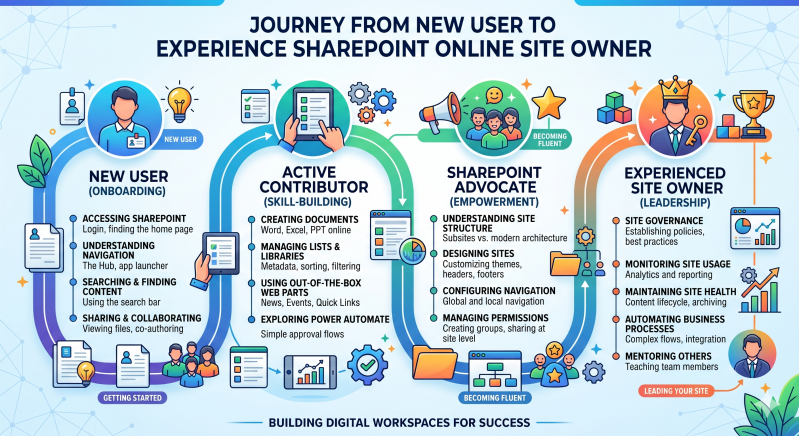
The Journey from New User to Experienced SharePoint Online Site Owner
Phase 1: New User (Onboarding & Getting Started)
The journey begins at the individual level. In this initial stage, the focus is purely on orientation, navigation, and fundamental consumption of content.
1. Accessing SharePoint
-
The First Steps: Logging into the Microsoft 365 portal and discovering the SharePoint home page.
-
Best Practice: Bookmark your frequently used team sites or follow them via the SharePoint start page for quicker morning access.
2. Understanding Navigation
-
The Hub & App Launcher: Getting comfortable with the global navigation elements, including the Microsoft 365 App Launcher (the "waffle" icon) and the SharePoint Hub structure.
-
Key Concept: Recognizing how separate sites roll up into broader hub networks to understand where your specific team fits into the company ecosystem.
3. Searching & Finding Content
-
The Microsoft Search Bar: Relying on the smart search bar at the top of the page to find files, sites, and news posts instead of aimlessly clicking through folders.
-
Key Concept: Search in SharePoint is personalized; you will only see search results for content you have explicit permission to view.
4. Sharing & Collaborating
-
Viewing & Co-authoring: Moving away from emailing file attachments. Users learn to open Word, Excel, or PowerPoint files directly in the browser or desktop apps, collaborating simultaneously with colleagues in real time.
Phase 2: Active Contributor (Skill-Building)
Once comfortable consuming content, the user shifts from a passive viewer to an active creator, managing data and starting to experiment with basic automation.
1. Creating Documents
-
Cloud-First Creation: Creating documents directly inside SharePoint libraries.
-
Key Concept: Understanding version history, which allows contributors to track changes, see who edited what, and restore older versions without needing IT intervention.
2. Managing Lists & Libraries
-
Beyond Folders: Transitioning from rigid folder structures to metadata-driven views.
-
Key Concept: Utilizing tags, sorting, and filtering to organize large volumes of data dynamically.
3. Using Out-of-the-Box Web Parts
-
Page Enhancement: Enhancing team pages by configuring basic modular web parts such as News announcements, upcoming Events calendars, and Quick Links buttons to central tools.
4. Exploring Power Automate
-
Basic Automation: Introducing workflows. Users at this stage start utilizing pre-built templates to create simple email approval flows for documents or list items.
Phase 3: SharePoint Advocate (Empowerment & Becoming Fluent)
At this stage, the user transitions from managing their own work to designing experiences for their broader team. They understand the underlying architecture and take on site customization.
1. Understanding Site Structure
-
Modern Architecture: Graduating from old-school nested subsites to modern flat architecture.
-
Key Concept: Understanding that every modern Microsoft Team or Loop workspace sits on its own independent SharePoint site collection, which can then be associated with a shared Hub.
2. Designing Sites
-
Aesthetics & Usability: Customizing site themes to match company branding, configuring striking headers, and crafting functional footers.
-
Key Concept: Building with a mobile-responsive mindset so pages look clean on both desktops and smartphones.
3. Configuring Navigation
-
Structuring Paths: Designing intuitive global (Hub) and local (Site) navigation menus to ensure colleagues can find critical information within three clicks.
4. Managing Permissions
-
Security Best Practices: Managing site-level security by assigning users to the correct native SharePoint Groups: Site Visitors (Read-only), Site Members (Edit), and Site Owners (Full Control).
Phase 4: Experienced Site Owner (Leadership & Leading Your Site)
The final stage represents total mastery. The user is now a strategic leader responsible for site health, compliance, complex integrations, and the digital literacy of their team.
1. Site Governance
-
Establishing Guardrails: Setting strict policies and best practices for how data is stored, how long it is kept, and who is allowed to share information externally.
2. Monitoring Site Usage
-
Data-Driven Adjustments: Utilizing SharePoint's built-in analytics and reporting dashboards to track unique viewers, peak traffic times, and popular content to continuously optimize the site experience.
3. Maintaining Site Health
-
Lifecycle Management: Regularly auditing content, archiving obsolete document libraries, deleting inactive pages, and ensuring that orphaned files are properly managed.
4. Automating Business Processes
-
Complex Integrations: Moving beyond simple templates to design custom, multi-stage Power Automate flows and integrating SharePoint lists with Power BI dashboards for advanced reporting.
5. Mentoring Others
-
Empowering the Next Generation: Stepping into a teaching role to train new team members, establishing a center of excellence, and helping the next wave of users start their own SharePoint journey.