

SharePoint Mentor Curated Articles
Preparing SharePoint Online for Microsoft AI Tools and Copilot
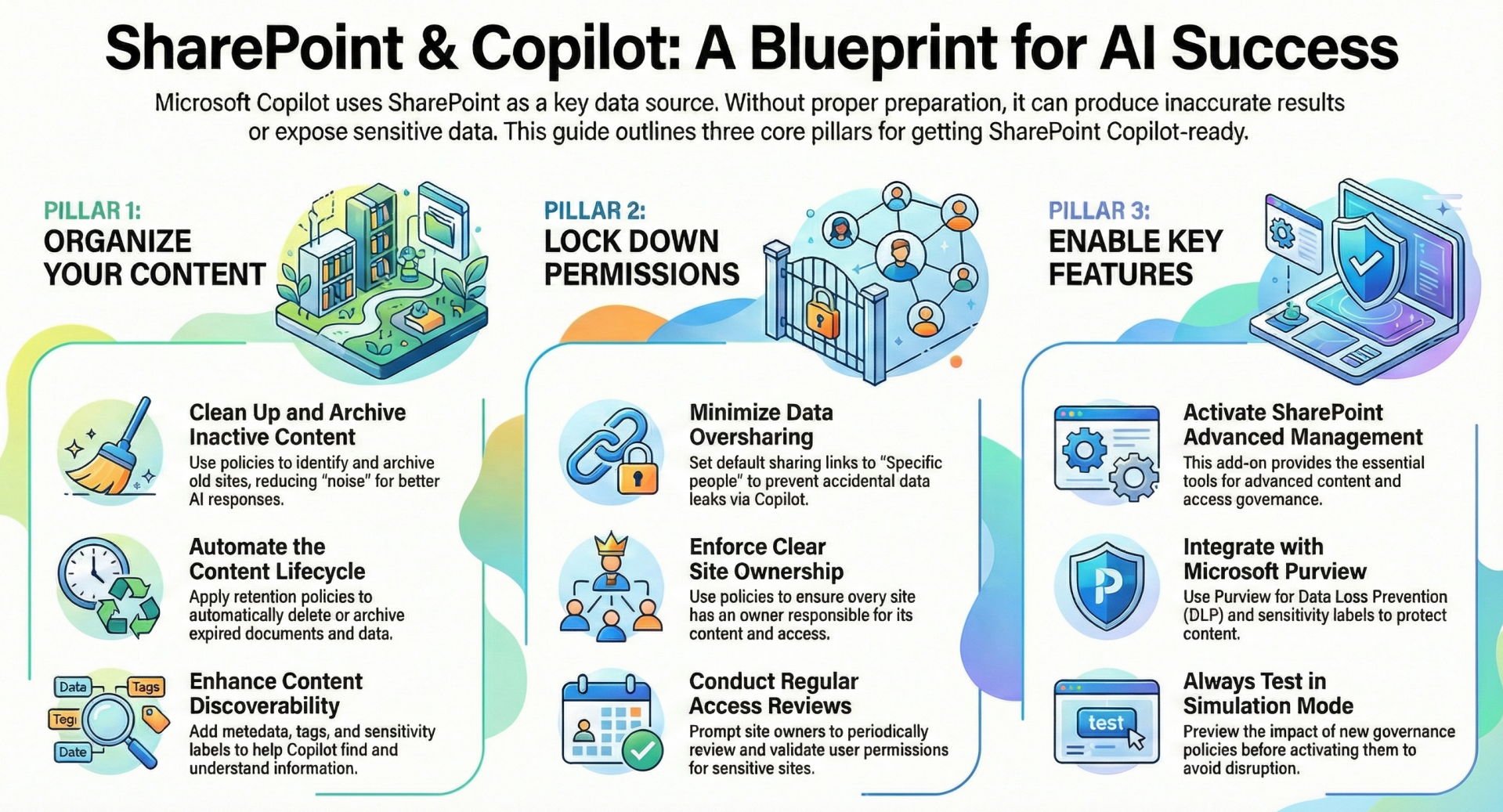
Microsoft AI Tools, including Microsoft 365 Copilot, leverage SharePoint Online as a key data source to generate accurate and relevant responses based on organizational content. Proper preparation ensures that Copilot can access, analyze, and surface information effectively while maintaining security, compliance, and data quality. This involves organizing content for discoverability, managing permissions to prevent oversharing, and enabling features like semantic indexing.
This article outlines actionable steps across content, permissions, and features, drawing from best practices to optimize SharePoint for AI-driven tools.
Understanding the Semantic Index
- The Semantic Index is a foundational feature for Copilot, creating an advanced lexical and semantic mapping of organizational data stored in Microsoft Graph. It transforms content into vectorized indices—numerical representations that capture similarities, synonyms, relationships between concepts (e.g., "tech" and "technology"), and query intent beyond exact keyword matches.
- This enables Copilot to retrieve contextually relevant results from billions of vectors, improving response accuracy by understanding sentence-level intent, document relationships, and related assets.
Requirements and Enablement
- Automatic Enablement: The Semantic Index is automatically provisioned at the tenant level for any organization with Microsoft 365 Copilot licenses. No manual administrative action is required to enable it; Microsoft handles the indexing process.
- User-Level Indexing: A user-specific index is created for each licensed Copilot user, incorporating their mailbox data and accessible SharePoint content.
- Supported Content Types: Indexing covers text-based files in SharePoint Online, including Word (.doc/.docx), PowerPoint (.pptx), PDFs (up to 512 MB), web pages (.aspx), OneNote files (.one), and data from Copilot connectors. New documents accessible to at least two users are indexed daily, with changes to existing files indexed immediately.
- Prerequisites: Ensure SharePoint sites are searchable (default setting) and users have appropriate permissions via role-based access control. The index respects all organizational boundaries and only surfaces content the querying user can access.
Checking Status and Management
- Status Verification: Administrators can review configurations in the Microsoft 365 admin center under Search & Intelligence. Item insights and People insights (enabled by default) enhance relevance but can be toggled if needed.
- Exclusions for Accuracy: To prevent sensitive data from being indexed, exclude entire SharePoint sites by navigating to Site Settings > Search and offline availability and setting "Allow this site to appear in search results" to No. This can be scripted via PowerShell for bulk operations. Alternatively, use Microsoft Purview Data Loss Prevention (DLP) policies to exclude specific files.
- Benefits for SharePoint: In SharePoint, the index grounds Copilot responses in organizational knowledge, enabling features like enhanced search in Microsoft 365 Chat, query expansion (e.g., broadening "praises" to include "elated" or "excited"), and retrieval of grounded data for more precise AI outputs.
Preparations for Optimal Use
- Migrate legacy content into SharePoint while preserving metadata and permissions to ensure indexability.
- Apply data minimization through Microsoft Purview retention policies to delete outdated content, reducing noise in the index.
- For third-party data, integrate via Copilot connectors to include it in the tenant-level index.
- Test indexing by adding sample documents and querying Copilot to verify relevance.
Content Preparation
- Effective content preparation focuses on quality, organization, and lifecycle management to help AI tools like Copilot generate relevant responses. Poorly structured or outdated content can lead to irrelevant or inaccurate outputs.
- Key Actions:
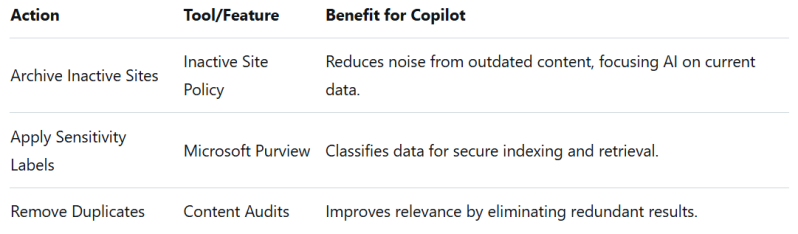
- Clean Up Inactive and Unused Sites: Identify sites inactive for a configurable period (e.g., 90 days) using SharePoint Advanced Management's Inactive Site policy.
- Run in simulation mode first to preview, then activate to notify owners for attestation. If unneeded, set to read-only and archive via Microsoft 365 Archive after 3-12 months.
- Archived content becomes inaccessible to Copilot, improving response quality by excluding stale data.
- Manage Content Lifecycle:
- Use Microsoft Purview for retention policies and labels to automatically delete or archive expired content.
- Regularly review and migrate content from on-premises or other sources to SharePoint, ensuring text-rich formats for better indexing.
- Enhance Discoverability:
- Add metadata, tags, and sensitivity labels to documents via Microsoft Purview Information Protection.
- Structure sites with clear hierarchies, libraries, and folders.
- Use AI-powered semantic matching in SharePoint Advanced Management to find similar vulnerable sites based on content, files, and metadata.
- Audit Content:
- Conduct audits for duplicates, outdated files, and overshared items using reports like Site Activity-Based Reports to monitor sharing activities.
* add image here *
- Conduct audits for duplicates, outdated files, and overshared items using reports like Site Activity-Based Reports to monitor sharing activities.
Permissions Management
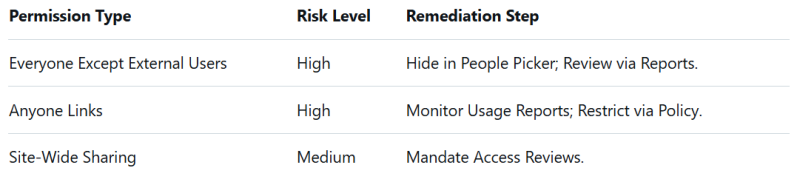
Copilot respects user permissions, so preparation must minimize oversharing while ensuring authorized access. Overshared content can expose sensitive information in AI responses.
Key Actions
- Reduce Oversharing: At the organization level, set default sharing links to "Specific people" instead of broad scopes. Hide "Everyone Except External Users" in the People Picker via PowerShell. At the site level, restrict members from sharing and route access requests to owners.
- Ensure Site Ownership: Use Site Ownership policy to identify ownerless sites (requiring at least two owners). Run in simulation mode, then activate to notify candidates. Lock ownerless sites to read-only.
- Conduct Access Reviews: Initiate Site Access Reviews for high-risk sites, notifying owners to review and remediate permissions via a dashboard. Use Restricted Access Control to limit access to specific groups during reviews.
- Monitor Sharing: Run reports like Oversharing Baseline Report via PowerShell and Site Permissions for the Organization to detect broad permissions (e.g., "Everyone Except External Users"). Use AI insights in reports for remediation suggestions.
- Restrict Sensitive Sites: Apply Restricted Content Discovery to prevent content from appearing in Copilot or search without altering permissions. For business-critical sites, enforce encryption and block downloads.
Enabling and Configuring Features
- SharePoint Advanced Management: This add-on is essential for advanced governance. Enable it to access policies for inactive sites, ownership, access reviews, and restricted controls. It integrates with Copilot to control content visibility.
- Microsoft Purview Integration: Configure DLP, sensitivity labels, and data classification to protect content during indexing. Enable Item and People insights for better relevance.
- Simulation Mode for Policies: Always test policies (e.g., inactive sites, restricted access) in simulation mode before full activation to avoid disruptions.
- Automation Tools: Use PowerShell scripts for bulk operations and tools like Orchestra for centralized management of reports and policies.
Best Practices and Governance Framework
- Develop a governance framework covering permissions, content lifecycle, and user training.
- Train users on prompt engineering and validating Copilot responses to ensure secure usage.
- Regularly monitor reports and use AI insights for proactive remediation.
- For site structure, audit hierarchies to ensure logical organization, aiding semantic search.
- Integrate with Microsoft Graph Data Connect for advanced permission analysis.
Testing and Validation
- Test Scenarios: Create sample queries in Copilot to verify response accuracy post-preparation. Check for excluded sensitive data and relevance from indexed content.
- Ongoing Monitoring: Schedule monthly reviews of sharing reports and access audits. Use feedback loops to refine configurations.
- User Adoption: Roll out in phases, starting with pilot groups, to gather insights on AI performance.