

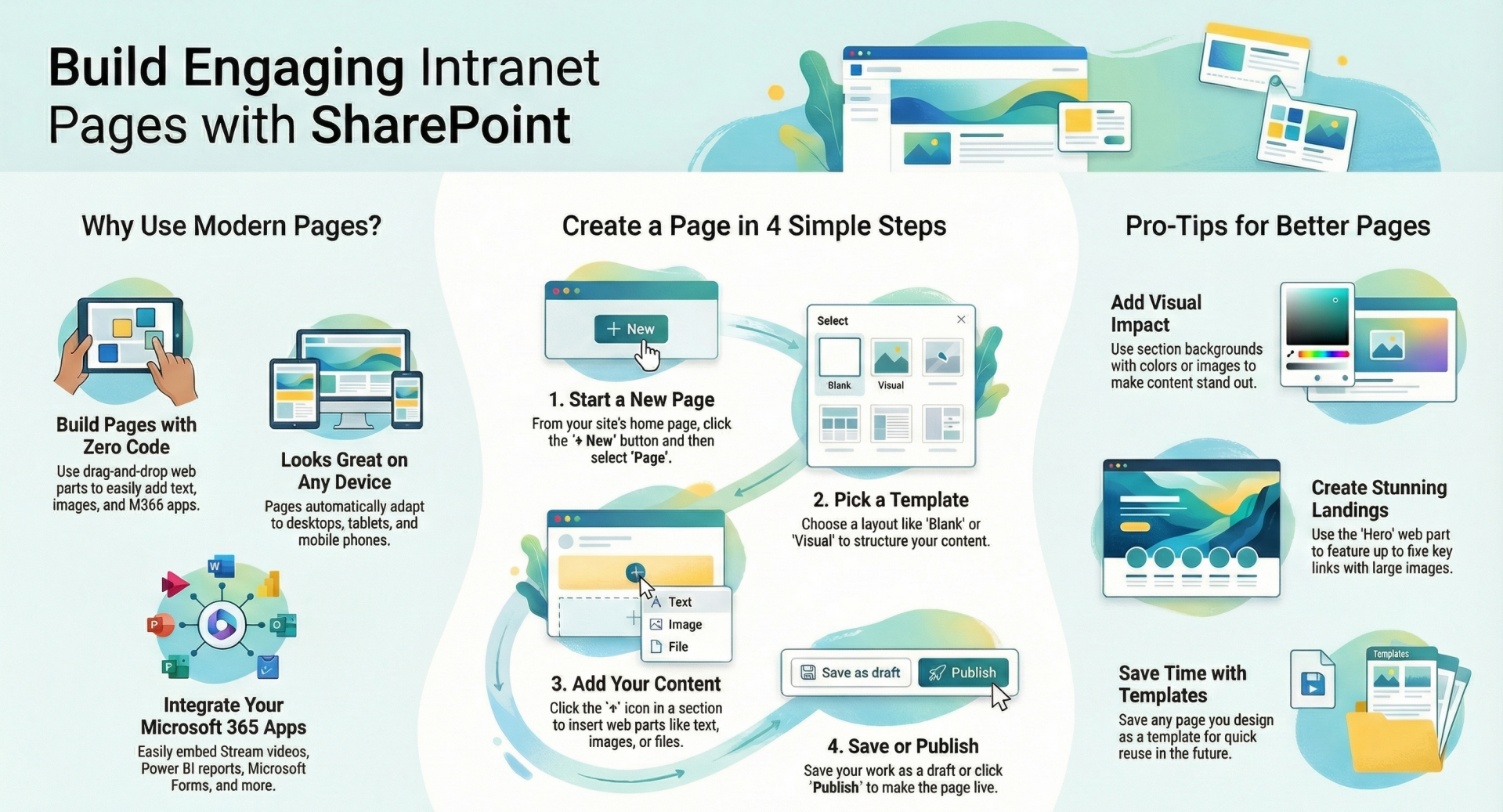
Modern SharePoint pages are the primary way to build rich, responsive intranet content, news, landing pages, and team sites.
Here are the main benefits:
- Responsive & Mobile-Friendly
- Pages automatically adapt to phones, tablets, and desktops.
- No Coding Required
- Drag-and-drop web parts (Text, Image, Microsoft 365 content, Power BI, Forms, etc.) make it easy for non-developers.
- Fast Publishing & News
- Create beautiful news articles that appear in the SharePoint mobile app, Microsoft Teams, and Viva Connections.
- Dynamic & Integrated Content
- Embed Microsoft Stream videos, Yammer conversations, Power Apps, Planner, Forms, Bing Maps, and hundreds of third-party web parts.
- Audience Targeting
- Show or hide sections/web parts to specific Azure AD groups.
- Versioning & Approval
- Full page versioning, check-in/check-out, and content approval workflows (if enabled).
- SEO & Highlighted Content
- Pages are indexed by Microsoft Search; you can promote them on the SharePoint start page or in hub sites.
- Translation & Multilingual Support
- Built-in page translation service (manual or automatic).
- Analytics
- Built-in page views and visitor insights.
- Templates & Reusability
Save any page as a site template or page template for reuse.
Types of SharePoint Pages
- Site Pages – Standard modern pages (most common)
- News Pages – Special pages that appear as news articles
- Home Page – The default landing page of a site (usually a Site Page)
How to Create a Modern SharePoint Page (Step-by-Step)
Method 1 – From the Site Home Page
- Go to your SharePoint site → Home
- Click + New at the top → Page
- Choose a layout/template:
- Blank
- Visual layouts (e.g., one column, two columns, three columns)
- Official templates (News, Showcase, Blank, etc.)
- Give the page a Title
- Start adding sections and web parts:
- Click + in a section to add web parts (Text, Image, File viewer, Microsoft Forms, etc.)
- Drag sections up/down or change section background/layout
- When finished:
- Save as draft (if you’re not ready)
- Publish (or republish if editing a published page)
- Optionally schedule publishing or set up news promotion
Method 2 – From the Pages Library (More Control)
- Go to Site contents → Site Pages library
- Click + New → Page (or News post)
- Same creation experience as above
- Bonus: You can create a page directly from a saved Page template here
Method 3 – Create a News Post
- From the home page → + New → News post
- Pick a template (Plain, Visual, Showcase, etc.)
- Add title, cover image, content
- Publish → appears in the News web part, SharePoint app, and can be sent via email
Quick Tips for Better Pages
- Use Section backgrounds (shaded, colored, or image) for visual impact
- Add Vertical sections for sidebars (great for quick links or contact info)
- Use Image web part with focal point and alt text for accessibility
- Embed Microsoft 365 content dynamically (recent documents, events, etc.)
- Use Hero web part (up to 5 items) for stunning landing pages
- Turn on Comments on the page if you want user feedback
- Use Page templates (save any page as a template from the Pages library)
Permissions Needed
- To create pages: Add and Customize Pages permission (default in Members group)
- To publish news on an organization-wide communication site: Usually needs to be in the site’s Owners or Members group + sometimes approval workflow
That’s it! Modern SharePoint pages are one of the easiest and most powerful ways to create beautiful, functional intranet content without writing a single line of code.