

Benefits of Controlling Over-Sharing in SharePoint Online
Over-sharing in SharePoint Online occurs when files, folders, or sites are inadvertently granted excessive access, often through external links or broad permissions, increasing risks like data breaches and compliance violations. Controlling it ensures secure collaboration while maintaining productivity.
Key benefits include:
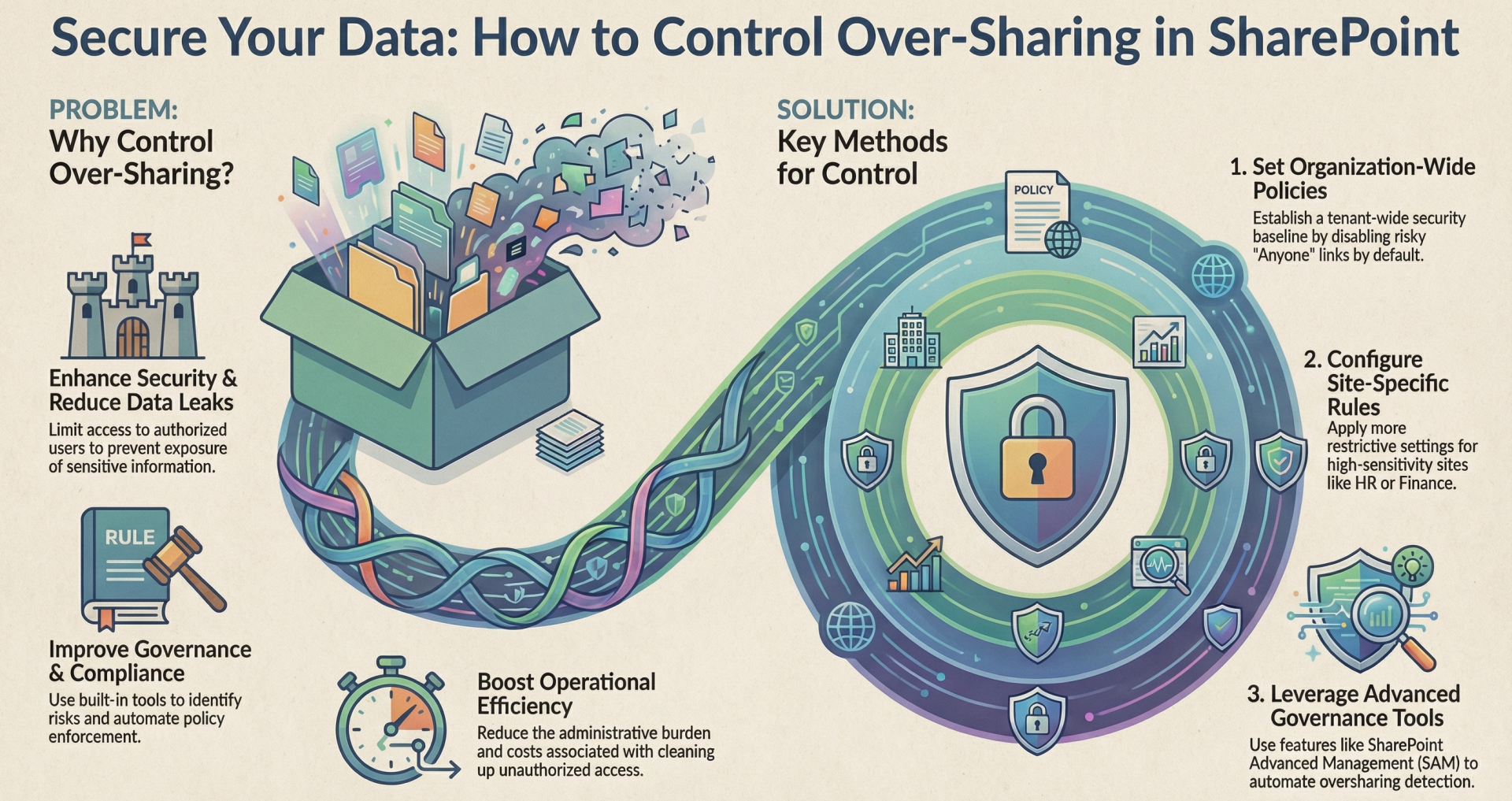
- Enhanced Security and Reduced Data Leak Risks: By limiting access to authorized users only, you minimize the chance of sensitive information being exposed to unauthorized parties, preventing offline copies or app-based downloads via features like block download policies. This aligns with the principle of least privilege, granting only necessary permissions to protect organizational data integrity, confidentiality, and privacy.
- Improved Governance and Compliance: Tools like data access governance reports help identify overshared or sensitive content across sites, enabling proactive risk mitigation and automated compliance measures. Regular site access reviews delegate validation to site owners, ensuring permissions are routinely audited and aligned with policies, which reduces governance overhead and supports regulatory requirements.
- Better Content Discovery and Access Control: Restricting search visibility and enforcing group-based access prevents unauthorized discovery of content, even for previously shared items. This also improves AI tool interactions, such as Microsoft 365 Copilot, by curbing accidental oversharing in results and enhancing response quality.
- Operational Efficiency and Cost Savings: Minimizing oversharing reduces the administrative burden of cleaning up unauthorized access, lowers breach-related costs, and fosters secure collaboration without overly restrictive measures that could hinder teamwork.
How to Control Over-Sharing in SharePoint Online
SharePoint Online provides layered controls at the organization, site, and item levels, integrated with Microsoft Entra ID for robust enforcement. The most restrictive setting always applies (e.g., site-level overrides organization-level if tighter). Below are key methods, focusing on external sharing (the primary over-sharing vector).
Set Organization-Level External Sharing Settings. These apply tenant-wide and serve as the baseline for all sites and OneDrive.
- Sign in to the SharePoint admin center (https://admin.sharepoint.com) with admin permissions.
- Go to Policies > Sharing.
- Under External sharing, select a level for SharePoint (applies to all sites) and OneDrive (can be more restrictive):
- Anyone: Allows unauthenticated "Anyone" links (highest risk; use cautiously for non-sensitive content).
- New and existing guests: Requires sign-in or verification code (recommended for balanced security).
- Existing guests: Limits to pre-approved guests in your directory.
- Only people in your organization: Disables external sharing entirely (most secure).
- Configure additional controls:
- Default link type: Set to "Specific people" for tracked access or "Only people in your organization" for internal focus.
- Link expiration: Require "Anyone" links to expire (e.g., after 30 days).
- Link permissions: Limit "Anyone" links to View-only.
- Domain restrictions: Allow/block specific domains (up to 5,000) to prevent sharing with unwanted organizations.
- Guest expiration: Auto-remove guests after a set period (e.g., 90 days).
- Save changes. Restrictions take effect within 1 hour; review Microsoft Entra guest invite settings for further B2B controls.
Best practice: Start with "New and existing guests" and enable domain blocks for partners only.
Configure Site-Level External Sharing Settings
Override organization settings for individual sites (must be equal or more restrictive).
- In the SharePoint admin center, go to Sites > Active sites.
- Select a site and click the Settings tab.
- Under External sharing, choose More sharing settings and select an option (same as organization-level: Anyone, New/existing guests, etc.).
- Expand Advanced settings for external sharing to limit by domain or restrict who can share (e.g., site owners only).
- Save. For group-connected sites (e.g., Teams), this syncs with group settings.
To limit sharing roles further:
- Go to the site > Settings (gear icon) > Site permissions > Advanced permissions settings.
- Edit permission levels (e.g., uncheck "Manage Permissions" for members to prevent them from granting access).
Best practice: Set high-sensitivity sites (e.g., HR or finance) to "Only people in your organization."3. Use Restricted Site Access Control with GroupsThis feature blocks access to entire sites based on Microsoft 365 or Entra security group membership, overriding prior links or permissions.
- Enable tenant-wide: In SharePoint admin center > Policies > Access control > Site-level access restriction, select Allow access restriction and save. (Or use PowerShell: Set-SPOTenant -EnableRestrictedAccessControl $true.)
- For a site: In Active sites, select the site > Settings > Restricted site access > Edit.
- Check Restrict SharePoint site access to only users in specified groups.
- Add up to 10 groups (GUIDs; auto-adds default Microsoft 365 group for connected sites).
- Optionally, block sharing outside groups: Set-SPOTenant -AllowSharingOutsideRestrictedAccessControlGroups $false.
- Monitor via PowerShell reports (e.g., Start-SPORestrictedAccessForSitesInsights -RACProtectedSites for protected sites).
Requires E3/E5 licensing plus Copilot or SAM add-on. Benefits include granular group-based control and audit logs for denials.
Leverage SharePoint Advanced Management (SAM) for Advanced Governance SAM (add-on license) provides proactive tools beyond basic settings.
- Data Access Governance Reports: In SharePoint admin center > Advanced management > Data access, run reports to scan for overshared sites/content. Apply policies like sensitivity labels or block downloads directly.
- Site Access Reviews: Delegate reviews to owners via Advanced management > Site access review; they validate and revoke permissions.
- Other Features: Compare site policies for consistency, restrict content discovery in searches, and enforce conditional access.
Best practice: Use SAM for large tenants to automate oversharing detection.
Additional Tips to Prevent Over-Sharing
- Item-Level Controls: For files/folders, right-click > Manage access > Advanced > Stop inheriting permissions, then grant specific users/groups.
- Stop Existing Sharing: Remove guests via Microsoft Entra or delete "Anyone" links; audit via Microsoft Purview.
- Monitoring: Enable alerts for sharing events and use DLP policies for sensitive data.
- Training: Educate users on "Specific people" links over "Anyone" to track access.