

SharePoint Mentor Curated Articles
Introduction to SharePoint Migration
A SharePoint migration is the process of moving content, configurations, customizations, workflows, permissions, and metadata from a source environment (on-premises SharePoint, file shares, Google Drive, Box, older SharePoint Online tenants, etc.) to a target SharePoint environment (typically SharePoint Online in Microsoft 365, or a newer on-premises version).
SharePoint Migration Projects – Planning and Pre-Go-Live Testing Checklist
Common Migration Scenarios
- SharePoint 2007/2010/2013/2016/2019 → SharePoint Online (Modern)
- SharePoint 2013/2016/2019 → Newer on-premises farm
- File shares / legacy ECM → SharePoint Online
- One Microsoft 365 tenant → Another Microsoft 365 tenant (tenant-to-tenant)
- Classic SharePoint sites → Modern SharePoint experience
Key Success Factors
- Thorough planning and inventory
- Clear governance and information architecture for the target
- Accurate mapping of permissions, metadata, and content types
- Minimal business disruption
- Data integrity and zero (or near-zero) data loss
- User adoption and change management
The most critical phase that determines whether the migration is truly “successful” is the final validation and testing before cutover/go-live.
Comprehensive Pre-Go-Live Testing Checklist
Content Integrity & Completeness
- Item/Folder/File count comparison (source vs target)
- Full content sampling (random + high-risk items) • Large files (>15 GB) and long paths (>400 chars)
- Version history count and major/minor versions
- Checked-out documents
- Items with unique permissions
Success Criteria / Validation Method
- Counts match ±0.5% (explain variances)
- Sampled items open correctly
- All versions preserved
Metadata & Content Types
- Required columns have values
- Choice/Term Store/Managed Metadata values correctly mapped
- Content Type assignment
- Lookup columns
Success Criteria / Validation Method
- No missing required fields
- Terms resolved correctly
- Lookups return expected values
Permissions & Security
- Site/List/Library-level unique permissions
- SharePoint Groups & Microsoft 365 Groups membership
- External sharing settings
- Item-level permissions (if used)
- “Limited Access” cleanup
Success Criteria / Validation Method
- Users can access what they should and are blocked from what they shouldn’t
- No orphaned permissions
Customizations & Solutions
- Custom site columns, content types, lists
- SharePoint Framework (SPFx) solutions deployed
- Legacy Full-Trust / Sandbox solutions (if on-prem)
- Custom master pages / CSS / JS (modern sites)
Success Criteria / Validation Method
- All customizations functional in target
- No deprecated features in use
Workflows & Power Automate
- 2010/2013 workflows (if migrated or rebuilt)
- Power Automate cloud flows
- Nintex / third-party workflows (if in scope)
Success Criteria / Validation Method
- All workflows trigger and complete successfully
Search Functionality
- Crawl completion
- Search schema mapping (managed properties)
- Refiners and query rules
- Content Search Web Parts / Highlighted Content
Success Criteria / Validation Method
- Expected results appear at top 90% of test queries return correct items
Navigation & Site Structure
- Global/ hub navigation
- Mega menus
- Site hierarchy and hub site associations
- Quick Launch / left navigation
Success Criteria / Validation Method
- Navigation matches design Hub features (news rollup, associated sites) work
Pages & Web Parts
- Classic wiki/library pages → modern pages
- Script Editor / Content Editor web parts (if allowed)
- Modern web parts configuration
- Embedded Power BI / Forms
Success Criteria / Validation Method
- All pages render correctly
- No script errors
- Embedded content loads
Integrations & Third-Party Tools
- Power Apps embedded in pages
- Power BI reports
- Microsoft Teams tab integration
- Embedded Stream videos
- Third-party connectors
Success Criteria / Validation Method
- All integrations functional
Links & Hyperlinks
- Internal hyperlinks within documents and pages
- Shortcuts (.url) and mapped drives references
- Bookmark validation
Success Criteria / Validation Method
- < 1% broken links (industry benchmark)
Document Libraries Features
- IRM / Sensitivity labels • Retention / Records management policies
- Co-authoring
- Sync with OneDrive client
Success Criteria / Validation Method
- Labels applied
- Policies active
- Co-authoring works
- Sync succeeds
Lists & Forms
- Large lists (>5,000 items) with indexed columns
- Custom forms (Power Apps)
- Attachment preservation
Success Criteria / Validation Method
- Lists load quickly
- views work
- Forms submit correctly
Performance & Responsiveness
- Page load time (target < 3 sec for modern pages)
- Large library scrolling performance
- Mobile device rendering
Success Criteria / Validation Method
- Meets performance KPIs
User Acceptance Testing (UAT)
- Business users execute scripted day-in-the-life scenarios
- Pilot group feedback collection
Success Criteria / Validation Method
- 95% scenario success rate
- All high-severity defects resolved
Failover & Rollback Testing
- Verify rollback plan works (if applicable)
- Test “re-migration” of delta content after initial cutover
Success Criteria / Validation Method
- Rollback completes within SLA
Accessibility Testing
- WCAG 2.1 AA compliance (color contrast, alt text, keyboard navigation, screen reader)
Success Criteria / Validation Method
- Zero critical accessibility defects
Data Loss Prevention (DLP) & Compliance
- DLP policies
- Sensitivity labels
- Retention
- eDiscovery holds
Success Criteria / Validation Method
- Policies trigger correctly, no false negatives
Backup Verification
- Confirm Microsoft 365 backup (or third-party) can restore migrated content
Success Criteria / Validation Method
- Successful test restore of sample site/collection
3. Recommended Testing Phases
- Pre-Migration Mock Runs – Execute full migration in staging tenant and run all tests above.
- Final Pilot Migration – Migrate a representative subset with real users; complete UAT.
- Delta/Cutover Migration – After final sync, re-run critical tests (1–6, 10,13–18).
- Post-Go-Live Smoke Test – Quick validation immediately after cutover.
- Hypercare Period (2–4 weeks) – Monitor logs, support tickets, and re-test high-risk items.
Following this comprehensive checklist significantly reduces the risk of post-migration surprises and ensures a smooth transition to the new SharePoint target environment.
Risk Mitigation Strategies
Recommended Risk Management Practices
- Maintain a live RAID log (Risks, Assumptions, Issues, Dependencies) updated weekly.
- Perform formal gate reviews after each pilot wave with mandatory sign-off on critical risks.
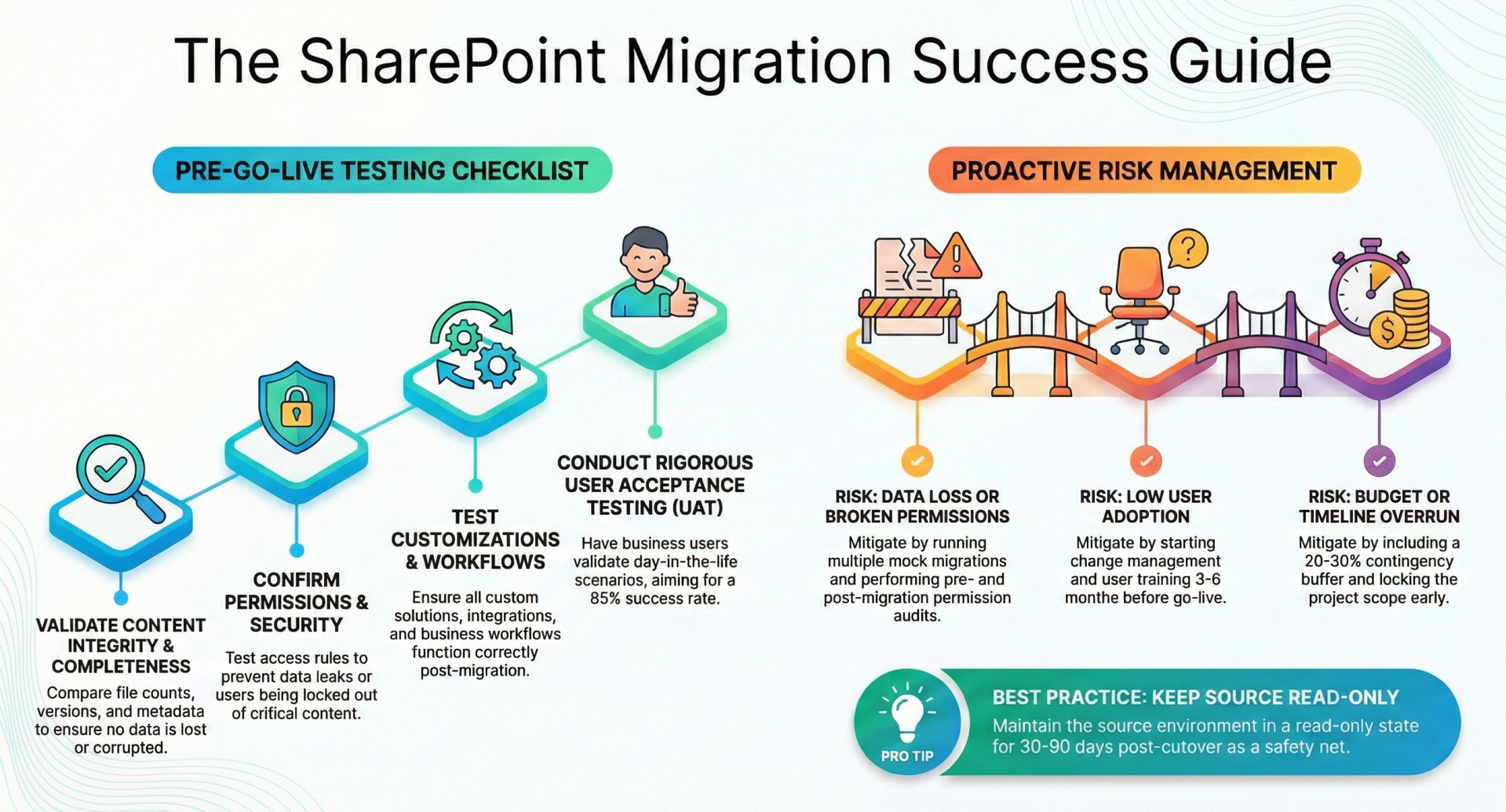
- Keep the source environment in read-only mode for at least 30–90 days after cutover as a safety net.
- Conduct a post-migration lessons-learned workshop within 4 weeks of final wave go-live.
By proactively addressing these risks with the mitigation strategies above — combined with the comprehensive testing checklist — organizations can achieve a 95%+ success rate with minimal business disruption.
Risk Area
- Data loss or corruption
Potential Impact
- Business-critical content unavailable
Mitigation Strategies (Preventive & Contingency)
- Use only Microsoft-recommended tools (SharePoint Migration Tool, Migration API, or certified 3rd-party tools)
- Run multiple mock migrations with full validation
- Enable versioning & Recycle Bin retention in target
- Take immutable backups before final cutover
Owner
- Migration Lead
Risk Area
- Missing or broken permissions
Potential Impact
- Data leakage or users locked out
Mitigation Strategies (Preventive & Contingency)
-
Export permission matrix early
-
Use Azure AD group-based permissions in target when possible
-
Perform pre- and post-migration permission reports
-
Run “What If” permission remediation scripts
-
Prepare “permission fix” runbook for hyper care
Owner
- Security & Migration
Risk Area
- Unsupported customizations / features
Potential Impact
- Functionality breaks after go-live
Mitigation Strategies (Preventive & Contingency)
-
Conduct Modernization Scanner + SharePoint Migration Assessment Tool (SMAT) early
-
Replace sandbox/full-trust solutions with SPFx/Power Platform
-
Block or rewrite deprecated web parts
-
Budget time for re-engineering
Owner
-
Solutions Architect
Risk Area
- Workflow failure (2010/2013/Nintex)
Potential Impact
-
Critical business processes stop
Mitigation Strategies (Preventive & Contingency)
-
Inventory all workflows 6–12 months ahead
-
Rebuild in Power Automate or supported alternative before migration
-
If “lift & shift” is required, use temporary 2013 on-prem farm for legacy workflows
-
Test every workflow end-to-end in pilot
Owner
-
Process Owners + Dev
Risk Area
-
Performance degradation
Potential Impact
-
Poor user experience, low adoption
Mitigation Strategies (Preventive & Contingency)
-
Flatten deep folder structures
-
Apply proper indexing & metadata
-
Limit list views >5k items
-
Use hub sites & modern pages
-
Conduct performance baseline tests after each pilot wave
Owner
-
Technical Architect
Risk Area
-
Long or invalid paths / restricted characters
Potential Impact
-
Migration jobs fail or files skipped
Mitigation Strategies (Preventive & Contingency)
-
Run pre-scan reports (SPMT or 3rd-party) 3–6 months ahead
-
Implement automated path shortening & character replacement scripts
-
Communicate restricted character policy to users early
Owner
-
Migration Lead
Risk Area
- Large volume of versions / very big files
Potential Impact
- Extremely long migration time, throttling
Mitigation Strategies (Preventive & Contingency)
-
Define version limit policy (e.g., keep last 10 major + last 5 minor)
-
Use Azure Data Box or SPMT “bulk” mode for >100 TB
-
Schedule migrations during low-throttle windows (evenings/weekends)
Owner
-
Project Manager
Risk Area
- User resistance / lack of adoption
Potential Impact
- Project perceived as failure
Mitigation Strategies (Preventive & Contingency)
-
Start change management & communication 3–6 months before go-live
-
Run “lunch & learn” sessions
-
Deploy modern home site & training portal
-
Assign site owner champions in each department
Owner
-
Change Manager
Risk Area
-
Search not returning expected results
Potential Impact
- Users can’t find content → shadow IT
Mitigation Strategies (Preventive & Contingency)
-
Map crawled & managed properties before final migration
-
Create custom result sources & query rules if needed
-
Test search with real user queries during UAT
-
Enable Continuous Crawl
Owner
-
Search Architect
Risk Area
-
Cutover downtime too long
Potential Impact
-
Business disruption
Mitigation Strategies (Preventive & Contingency)
-
Use incremental/final-delta sync (most tools support this)
-
Perform cutover during weekend or holiday window
-
Pre-communicate read-only period
-
Have rollback plan ready (keep source available read-only)
Owner
-
Project Manager
Risk Area
-
Sensitivity labels / DLP not applied
Potential Impact
-
Regulatory non-compliance
Mitigation Strategies (Preventive & Contingency)
-
Re-apply labels via PowerShell or auto-labeling policies post-migration
-
Test DLP rules in target tenant before cutover
-
Include compliance team in UAT
Owner
-
Compliance Officer
Risk Area
-
Broken links (hyperlinks, shortcuts)
Potential Impact
-
Users frustrated, manual rework
Mitigation Strategies (Preventive & Contingency)
-
Run link-fix tools (ShareGate, AvePoint, PowerShell) after migration
-
Use modern “Move” experience when possible (preserves GUIDs & links)
-
Replace .url shortcuts with browser bookmarks or pinned tabs
Owner
-
Migration Lead
Risk Area
-
Budget or timeline overrun
Potential Impact
-
Project cancellation or reduced scope
Mitigation Strategies (Preventive & Contingency)
-
Include 20–30% contingency in both time and budget
-
Use wave/phase approach instead of Big Bang
-
Lock scope early and control via change request process
Owner
-
Project Manager / PMO
Risk Area
-
Lack of skills or resources
Potential Impact
-
Delays, poor quality
Mitigation Strategies (Preventive & Contingency)
-
Bring in certified migration partner early if internal team lacks experience
-
Train site owners on modern SharePoint 3–6 months ahead
-
Create runbooks and handover documentation
Owner
-
Program Sponsor
Risk Area
-
Tenant-to-tenant cross-geo restrictions
Potential Impact
-
Data sovereignty violations
Mitigation Strategies (Preventive & Contingency)
-
Verify Microsoft 365 Message Center for Multi-Geo capabilities
-
Use third-party tools that support geo-location routing if needed
-
Get legal sign-off on data residency plan
Owner
-
Legal & Compliance
Recommended Risk Management Practices
- Maintain a live RAID log (Risks, Assumptions, Issues, Dependencies) updated weekly.
- Perform formal gate reviews after each pilot wave with mandatory sign-off on critical risks.
- Keep the source environment in read-only mode for at least 30–90 days after cutover as a safety net.
- Conduct a post-migration lessons-learned workshop within 4 weeks of final wave go-live.