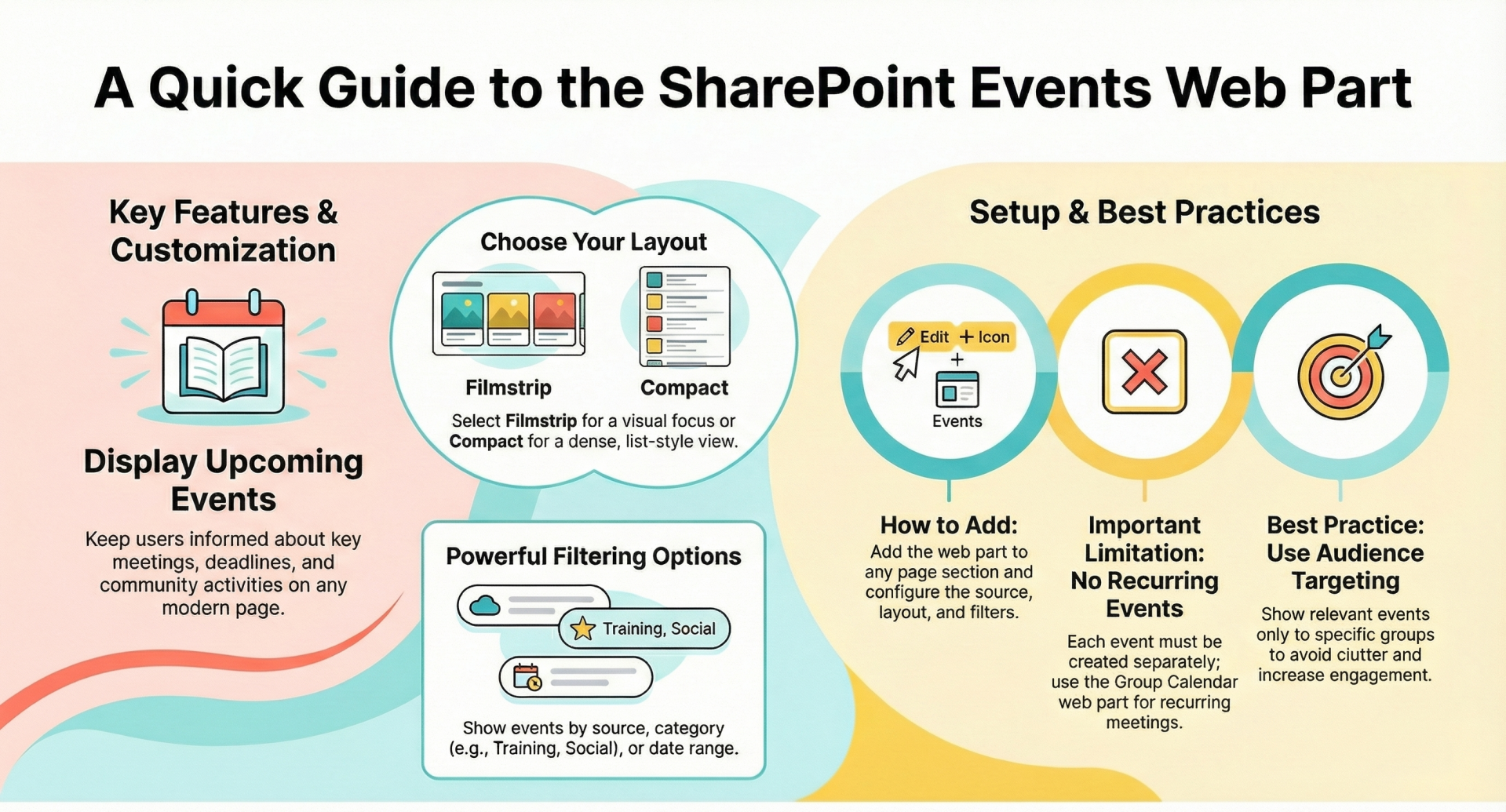
The Events web part in SharePoint Online lets site owners and users display upcoming events directly on modern pages. It supports filtering by site, category, and date range, and offers layouts like filmstrip or compact. Events can include details such as time, location, images, and meeting links.
Guide to the Events Web Part in SharePoint Online
What the Events Web Part Does
- Displays upcoming events on modern SharePoint pages.
- Helps users stay informed about meetings, deadlines, or community activities.
- Provides visual layouts (Filmstrip or Compact) for easy browsing.
Adding the Events Web Part
- Go to the page where you want to add events.
- Click Edit in the top-right corner.
- Select the + icon to add a new section.
- From the toolbox, choose Events.
- Use the Edit properties option to configure:
- Source: Events list on this site, this site collection, selected sites (up to 30), or all hub sites.
- Event list: If none exists, SharePoint creates one automatically.
- Category: Filter events by category tags.
- Date range: Show events for this week, next two weeks, this month, or this quarter.
- Layout: Choose Filmstrip (visual) or Compact (list view) Microsoft Support EnjoySharePoint.
Adding Events
- On a published page, click Add event.
- Fill in:
- Title (event name).
- Image (optional, for visual appeal).
- Date & time (start and end).
- Location (address or meeting room; maps supported if recognized).
- Link (Teams/online meeting link).
- Description (details for attendees).
- Save to publish the event Microsoft Support.
Key Features & Limitations
- Audience targeting: Show events only to specific groups.
- Hub site integration: Pull events from connected sites.
- No recurring events: Each occurrence must be created separately. For recurring meetings, use the Group calendar web part Microsoft Support.
- Filtering: By category or date range for tailored views.
Best Practices for Site Owners
- Use categories to separate event types (e.g., Training, Social, Deadlines).
- Compact layout works best for intranet dashboards; Filmstrip layout is ideal for event promotion.
- Audience targeting ensures relevance for different departments.
- Keep events updated—remove outdated ones to avoid clutter.
- Combine with other web parts (e.g., Hero or News) for a richer homepage experience.
For End Users
- Browse events directly from the site page.
- Click an event to view full details.
- Use filters to find relevant events quickly.
- Join online meetings directly via provided links.
Summary: The Events web part is a simple but powerful tool for keeping SharePoint Online sites dynamic and informative. Site owners can configure sources, categories, and layouts, while users benefit from clear, accessible event listings.